Written by Sergio Leon and Felix Kinaro.
Please start reading
Updating tools and apps - 1’part (ADN article)
Manual Updates
When automatic updates are either disabled or not applicable(e.g when using a custom pipeline configuration), you can perform manual updates of your pipeline toolkit installation. The typical workflow would be:
-
To update the core API, you can modify the descriptor version on core_api.yml file descriptor. You can find the last version in the latest release.
-
To manually update frameworks, you should update the bundle descriptors to match the target version you want to update to in your configuration’s includes/frameworks.yml file.
-
To update an engine, find your engine_locations.yml from your configuration. Ie, updating tk-nuke version manually in the engine_locations.yml as indicated in the latest release.
-
For apps, you can also follow the same procedure to apply the updates, by modifying the version for the respective apps in the app_location.yml file within the config folder of your configuration.
-
Reload your configuration to apply the updates. This can be achieved through simply relaunching the desktop and selecting the project using the updated pipeline configuration. This should activate the startup logic for the new configuration. Also, running ./tank updates will trigger an update mechanism and install the new bundles.
Recommended best practice: Always test updates in a cloned configuration or a test project first, before applying them to live projects. This helps catch version mismatches, missing dependencies or undesirable behavior.
Updating using the Tank command
The tank command provides an efficient way to manage updates, especially when using a centralized configuration in your project. Here’s how you can use it to update apps, engines, and the Toolkit Core API effectively.
Testing Updates in a Staging Environment
For added caution, it’s good practice to test updates in a staging sandbox. Once tested on that environment, you can bring those changes back to the primary configuration. To set up a sandbox:
-
Clone your primary pipeline configuration.
-
Run the
tank updatescommand in the cloned environment. -
For Core API updates, ensure the sandbox is localized before running the tank core command.
Once you’ve verified that the updates work as intended, you can apply them to your primary configuration.
You can get more information on:
Checking for Updates
To check for updates in your project, run the tank updates command. This scans all environments linked to the project and identifies available updates for apps or engines. If newer versions are detected, the system will:
-
Prompt you to confirm the updates.
-
Request input for any new configuration parameters introduced in the updates.
-
Provide a URL to release notes so you can review the changes before proceeding.
You can exit the process at any stage if needed.
To update the Toolkit Core API, simply run the tank core command.
Syntax and samples
The general syntax for running updates is:
tank updates [environment_name] [engine_name] [app_name]
You can use the ALL keyword to apply updates broadly.
Here are a few samples:
-
Update everything:
tank updates -
Check for updates in the Shot environment:
tank updates Shot -
Update all Maya apps in all environments:
tank updates ALL tk-maya -
Update the loader app everywhere:
tank updates ALL ALL tk-multi-loader -
Update the loader app in Maya:
tank updates ALL tk-maya tk-multi-loader
With the tank command, you have a powerful and flexible tool for keeping your Flow Production Tracking Toolkit updated while ensuring a stable and efficient pipeline.
You can get more details on this process:
Updating with the API
Toolkit updates can also be performed programmatically using the Python API, with detailed instructions available in this guide.
It is essential to keep in mind that this method automatically upgrades to the latest version without user confirmation or additional interaction. When dealing with shared cores, this process updates the shared core across all projects, so careful consideration and planning are advised before proceeding with this approach.
Understanding the Update Process
What gets Updated
- Core Components: The fundamental toolkit architecture
- Configuration: the default site/pipeline configuration (e.g., tk-config‐basic) is auto-updated in the standard setup. If you are using a custom pipeline configuration, automatic updates for that config will not be applied and must be managed manually.
- Engines: Environment-specific integrations (e.g., tk-nuke, tk-maya)
- Applications: Individual tools and utilities.
Version Management
- Versions are defined in YAML configuration files
- Standard semantic versioning is used (e.g., v1.2.3)
- Version constraints can be specified using comparison operators, ie tk-nuke: “>=v1.2.0,<v2.0.0”
Dependency Resolution
In some scenarios, when applying selective updates, we may run into dependency compatibility problems. Here’s an example scenario:
Initial State:
- tk-nuke v1.0.0
- qt-widget v1.0.0
Update Scenario:
tk-nuke updates to v2.0.0, which possibly requires qt-widget v2.0.0
Resolution would be:
1. Identify the dependency conflict. If a required framework or app version is missing or incompatible, the Toolkit will log a warning or raise an error in the console. A typical err message may look like:
Engine tk-nuke v2.0.0 requires framework tk-framework-qtwidgets >= v2.0.0 but v1.0.0 is installed
2. Determines required qt-widget version
3. Update both components if compatible and restart the toolkit.
App Store and Management
The App Store is part of the Toolkit ecosystem within Autodesk’s Flow Production Tracking platform. It is not a standalone public-facing store like the Apple App Store or Google Play, but rather a repository of apps and engines used to extend and customize production workflows.
Apps are downloaded and managed via the Pipeline Configuration when using descriptors. Descriptors for apps could point to FPTR app store. Also could point to a GitHub or a local path. The descriptors are defined in files like the ‘app_locations.yml’ or ‘engine_locations.yml’ and we will find many of them being of type ‘app_store’.
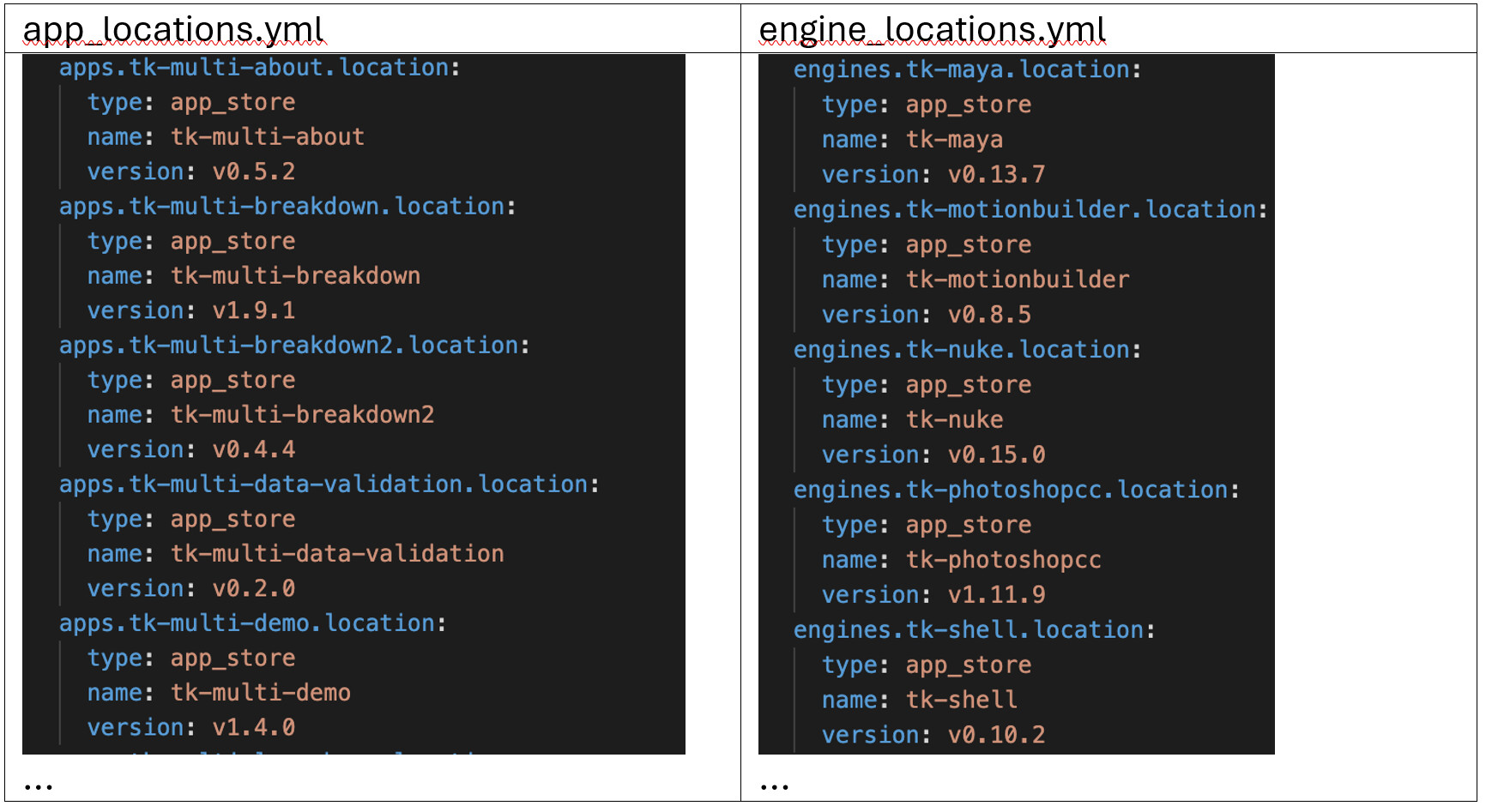
Most of the app store apps, engines and frameworks can be found in Github:
More about descriptors can be found in:
Location
Apps installed from the App Store are automatically downloaded and stored in the install/app_store directory of your project configuration.
It’s important not to modify these app files directly as any manual changes made inside app_store will be overwritten the next time updates are applied.
If you need to customize an app, first check whether your needs can be met through using hooks, which are designed for customization without altering the apps code.
If customization is required:
-
Clone the app from its Github repository into the install/apps folder of your pipeline configuration.
-
Update the app’s descriptor in the environment files to point to the new local or git based app
-
From this point onwards, manual maintenance is required and you’ll need to mere upstream changes whenever new changes are released.
This is covered in this guide.
Updating Distributed configurations
When working with distributed configs, the process for updating is a little different since we don’t have direct access to the tank command. We will need to download it. To achieve this, you can follow the steps as outlined in this community forum post.
As commented before, once the configuration is downloaded, it is also possible to use the API to automate the process of updating app versions within a distributed configuration. As an example, refer to this script.
Common Issues when updating/working with toolkit configuration files
-
Cached configurations, Toolkit App/engine reading from a different config from the uploaded one
Deletion of apps
It is possible to delete an app. To do that, first, edit the configuration files to remove all the references to the app, refer to this guide, then you can safely delete the folder containing the app.