Written by @sergio.leon and @Mercylyne
Having seasons, episodes, sets of assets or levels is common in production workflows. Flow production tracking (FPTR) provides an end-to-end way of organizing your seasons, episodes, shots, assets, tasks and any other entities you may have in your pipeline. But it also has the capability to add new Entities adapted to your structure. If you are wondering how you can incorporate these new entities into your pipeline as part of the project’s Schema, then this read is for you. We have put together the steps to take this into action together with the relevant reference to the FPTR documentation, so that you can have everything you need in one place.
How to follow this guide
The documentation about adding new entities to the schema is fragmented and/or repeated in several sections on the FPTR documentation. Some articles are in the user documentation and others in the developer documentation, with different degrees on how deep they cover these use cases. This is why we are going to pick one of these articles, and use it as our main reference guide, following the steps it has (enumeration), but complementing them with extra info and annotations.
Note that in following sections, we will follow this guide as the starting reference for each step:
- Dynamic filesystem configuration guide on https://help.autodesk.com/view/SGDEV/ENU/?guid=SGD_pg_developer_pg_getting_started_dynamic_filesystem_config_html
This article focuses on how to add an entity called sets (where a scene takes place, which groups the assets that belong to that space) to a production pipeline. We will point out the changes needed when, for instance, we want to add an epidote, season, set or level.
Aspects covered
The end goal is to customize your production folder structure and file naming to fit whichever entity you wish to track.
There are majorly four parts to this guide:
- Creating a new entity in Flow Production Tracking
- Adding a page in FPTR web user interface to visualize the new entity, and have it linked with other entities
- Editing the folder schema, enabling Toolkit to include dynamically named folders.
- Editing the template.
Prerequisites
The same as specified in the Dynamic filesystem configuration guide except that Maya is not mandatory for testing.
Step-by-Step guide
For adding Sets, Episodes, Levels or Seasons
Enabling a custom entity
Step 1:
Since FPTR version 7.0, Episodes are an official-supported entity that can be enabled by default. A ‘TV series’ project template was available, and now is called ‘Episodic TV template’. It can be used for a project’s schema. Before the mentioned FPTR version, this new episode entity was added as a Custom Entity. Custom entities are also the current approach for Sets and Seasons.
In FPTR we have a template project that comes with the Episode entity enabled out of the box, the ‘TV Show’ project template. Same way, the game project template comes with levels enabled. However, seasons or sets are two entities that do not come out of the box in any templates and will have to be enabled in the site preferences as a custom entity.
For scripts in games, you can follow the same steps as the Seasons, considering the hierarchy and naming.
Choose one of the custom entity types, configure it, and enable it.
Step 2:
-
For Sets, follow the steps on ‘Dynamic filesystem configuration’ guide.
-
For Episodes or Levels, the entity can be enabled on ‘Site Preferences → Entities → Episodes’ or ‘Site Preferences → Entities → Episodes // Levels’. In most cases, it is already enabled but hidden from the UI if you are not using the template projects.
-
For Seasons, follow the guide, but naming the Custom Entity accordingly. While episodes are coming by default in FPTR, seasons or sets are not, and we will need to add them as a new Entity. You can follow the steps on this article: Enabling a custom entity. It has a video.
-
To make visible on the web UI an entity like a Set, Episode, Season or Level on their specific pages on a project who didn’t have it yet, you can:


-
Go to your Project page in Flow Production Tracking.
-
Click on Project Actions (usually in the top-right corner).
-
Select Tracking Settings.

-
In the Hidden section, locate the entity.
-
Click the plus (+) icon next to it to add it back to the project.
This will make the entity visible and allow you to create an entity page within the project. The following image is a sample with Episode.

At this time, it is also important to make sure the Entities are correctly placed in its hierarchy. For example, Projects → Season → Episode → Sequences-> Shot. You can follow the steps described in: Customizing Entity Hieracrchy


You can assign pipeline steps to the entity if you want to enable tasks on it.

Add a data field to associate entities
Steps 3, 4, 5, 6:
-
For Sets, follow the steps in the ‘Dynamic filesystem configuration’ guide.
-
For Episodes, follow the steps indicated in the section from the next document to create entity links. Remember to use the option ‘Using the official Episode Entity’.
https://help.autodesk.com/view/SGDEV/ENU/?guid=SGD_pg_integrations_admin_guides_file_system_configuration_html#fields-required-for-the-episode-sequence-shot-hierarchy -
For Seasons, follow the guide with a Season Entity in:
https://help.autodesk.com/view/SGSUB/ENU/?guid=SG_Administrator_ar_get_started_ar_linking_custom_entities_html -
For Levels and Chapters, steps are like those in Episodes and Seasons https://help.autodesk.com/view/SGSUB/ENU/?guid=SG_Administrator_ar_site_configuration_ar_customizing_hierarchy_html
Creating the entity
Steps 5, 6:
Here we create the new entity, a web page for, and link it with other entities (like a shot).
-
For Sets, follow the guide’s steps on ‘Dynamic filesystem configuration’
-
For Seasons, create a new Season in the web ui, and assign it to a sequence as well as other entities like a shot.
https://help.autodesk.com/view/SGSUB/ENU/?guid=SG_Administrator_ar_get_started_ar_enabling_custom_entities_html -
For Episodes, more documentation about Episodes can be found here:
https://help.autodesk.com/view/SGSUB/ENU/?guid=SG_Administrator_ar_get_started_ar_episode_entity_html -
For Levels it depends on the production asset hierarchy, but it could look like: Project → Level (or World) → Mission / Quest → Asset.
A recommendation on the file naming convention is to follow naming like ‘s02_e01_SATL’ in the case we have shots or sequences named the same as episodes or seasons, we may have duplicates on file names, and Flow Production Tracking may not be able to extract where the assets belong from the filename.
Setting up the schema
The next steps are needed to prepare the schema and templates of the project’s configuration to allow the new entities to be reflected while storing content in the file system. As indicated in the ‘Dynamic file system configuration’ documentation:
“The Toolkit platform allows you to build your folder structure dynamically by using a schema, a miniature version of a production folder structure that will be used as a template when building out your actual production file system. The schema is an explicit guide for the dynamic creation of folders, and uses YAML files to define the rules for dynamically created folders. The Default Configuration includes a pre-configured schema that supports folder creation for both asset and shot pipelines. You will be modifying the portion of the schema that supports creating the asset folder structure, /assets/<asset_type>//, to add support for” other entities like an Episode, Level, Season or Set.
“Templates allow you to dynamically name and save files as they’re created using Flow Production Tracking data and information from the schema structure. The Default Configuration provides a set of starter templates that you can edit to meet the needs of your pipeline.”
Steps 7, 8:
-
For Sets, follow the guide’s steps on ‘Dynamic filesystem configuration’
-
For Seasons, follow the guide, naming the Custom Entity as the Season.
-
For Episodes, follow the steps indicated in the following section. Consider that we follow the ‘Using the official Episode Entity’ option.
https://help.autodesk.com/view/SGDEV/ENU/?guid=SGD_pg_integrations_admin_guides_file_system_configuration_html#toolkit-schema-definition -
For Levels, follow the same steps indicated in the episodes. Just consider we are also using the official ‘Levels’ entity here.
Let’s consider adding both episodes and seasons. The structure before modification would look like this:

After modifying:

If we add levels the structure will look like as below, following the hierarchy of Project > Asset > Level:

Step 9, 10, 11:
-
For Sets, follow the guide’s steps on ‘Dynamic filesystem configuration’.
-
For Seasons, follow same guide, naming the Custom Entity as the Season.
-
For Episodes, follow the steps indicated in this link, considering that we follow the section ‘Using the official Episode Entity’ option.
https://help.autodesk.com/view/SGDEV/ENU/?guid=SGD_pg_integrations_admin_guides_file_system_configuration_html#toolkit-schema-definition. -
For levels, in your config/core/schema/project/assets folder, create a folder named level with a corresponding level.yml file in the same directory with the following content:
-
Using the official Level Entity

- Using CustomEntity01
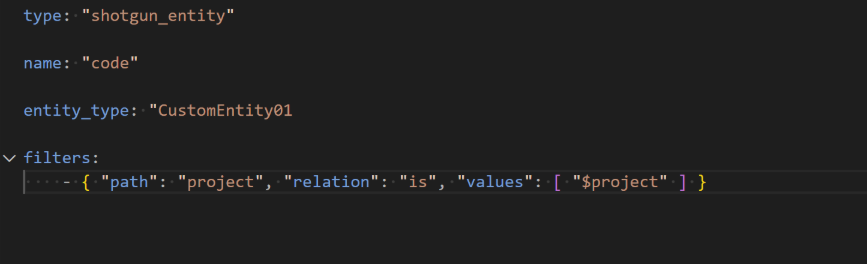
This tells Toolkit to create folders for every Level in this project.
For all cases, it is important to review the keys and paths from the ‘Toolkit template definitions’. For instance, shot_root:
- shot_root: seasons/{Season}/{Episode}/{Sequence}/{Shot}/{Step}
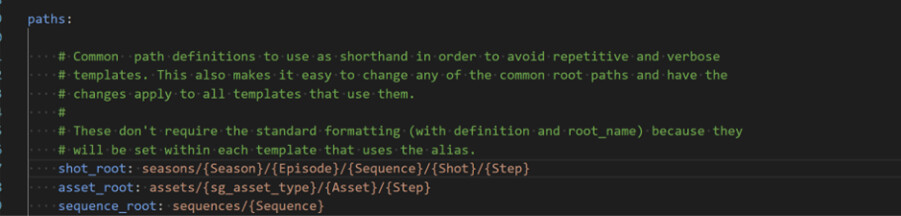
Also modify the wip locations depending on your DCC.
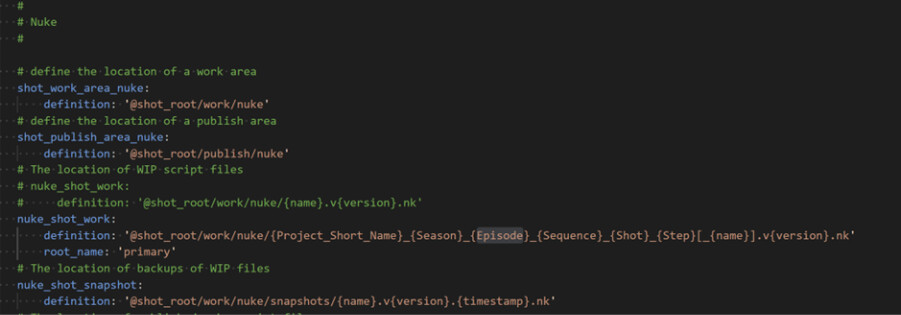
For Levels, steps are similar to episodes and seasons but consider your hierarchy and entities in your use case.

Test folder creation
Step 12:
- (!) Let’s keep this step to test later, after applying the steps that come next. We will execute this step together with Step 18.
Step 13, 14, 15:
-
For Sets, follow the guide’s steps on ‘Dynamic filesystem configuration’
-
For Seasons using the CustomEntity02 or Episodes, adjust the template definitions keys and paths according to:
https://help.autodesk.com/view/SGDEV/ENU/?guid=SGD_pg_integrations_admin_guides_file_system_configuration_html#toolkit-template-definitions -
For Levels define your template key, level as string just like in episodes
Edit the template to match the path in the file system schema
Step 16:
-
For Sets, follow the guide’s steps on ‘Dynamic filesystem configuration’
-
For Seasons using the CustomEntity02 or Episodes, adjust the template definitions keys and paths according to:
https://help.autodesk.com/view/SGDEV/ENU/?guid=SGD_pg_integrations_admin_guides_file_system_configuration_html#toolkit-template-definitions -
For Levels follow the steps on ‘Dynamic Filesystem configuration’ guide but placing {level} as the key.
For deeper knowledge on File system configuration, you can check out: https://help.autodesk.com/view/SGDEV/ENU/?guid=SGD_pg_integrations_admin_guides_file_system_configuration_html
Add set to the file name
Step 17:
-
For Sets, follow the guide’s steps
-
For levels,

- For Episodes and seasons

Test it (folders and starting in a DCC)
Step 12 and 18:
We can test the results now, what we had in Step 12 and now in Step 18.
-
For Sets, follow the guide step 12 for folder creation and then 18.
-
For Seasons, Episodes, you can test on a Shot using tank
cd <pipeline_configuration_root_folder>
./tank Shot MyShot1 folders
- For Levels,
./tank Level Mylevel folders or ./tank Asset toy folders
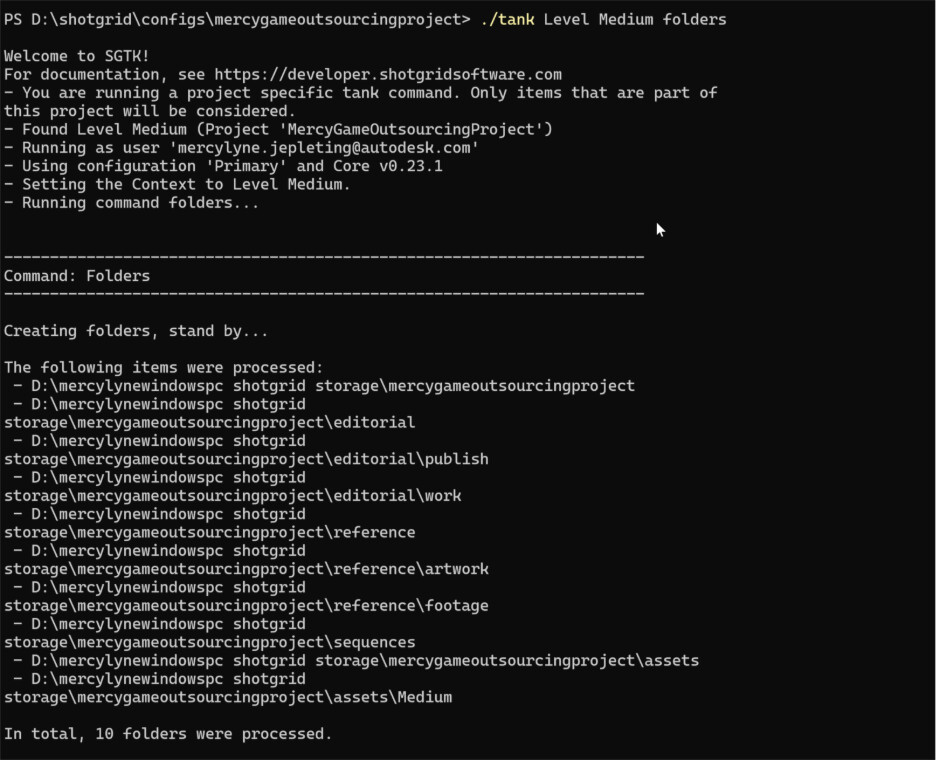


You can then synchronize folders in order to have a clean folder creation process. Tank command to use is :
> ./tank synchronize_folders -–full

If an Entity is deleted or trashed, then we may need to unregister the folders for those entities if you want to create them again.
Full Documentation
On the developer documentation:
- Cover how to add custom entities (sets sample) with good explanation of the concepts and steps:
https://help.autodesk.com/view/SGDEV/ENU/?guid=SGD_pg_developer_pg_getting_started_dynamic_filesystem_config_html - Cover the steps on adding Episodes, as a supported entity or using custom entities: https://help.autodesk.com/view/SGDEV/ENU/?guid=SGD_pg_integrations_admin_guides_file_system_configuration_html#how-can-i-add-a-new-entity-type-to-my-file-structure
On the user manual documentation, for administrator, we also find some resources about this setup, but it is fragmented:
- Enabling custom entities: https://help.autodesk.com/view/SGSUB/ENU/?guid=SG_Administrator_ar_get_started_ar_enabling_custom_entities_html
- Linking custom entities: https://help.autodesk.com/view/SGSUB/ENU/?guid=SG_Administrator_ar_get_started_ar_linking_custom_entities_html
- Hierarchy customization: https://help.autodesk.com/view/SGSUB/ENU/?guid=SG_Administrator_ar_site_configuration_ar_customizing_hierarchy_html
- The episode entity: https://help.autodesk.com/view/SGSUB/ENU/?guid=SG_Administrator_ar_get_started_ar_episode_entity_html
Specific to an entity:
- Episodes, https://help.autodesk.com/view/SGSUB/ENU/?guid=SG_Administrator_ar_get_started_ar_episode_entity_html
- Seasons, https://help.autodesk.com/view/SGSUB/ENU/?guid=SG_Administrator_ar_get_started_ar_enabling_custom_entities_html
- Levels, https://help.autodesk.com/view/SGSUB/ENU/?guid=SG_Administrator_ar_site_configuration_ar_customizing_hierarchy_html) , https://help.autodesk.com/view/SGSUB/ENU/?guid=SG_GetStarted_gs_games_gs_games_project_html